Advertising with LinkedIn is something that can help B2B marketers promote their business to targeted groups of professionals.
“According to the recent studies, LinkedIn stands as the world’s largest business networking website, and the most powerful way to reach their targeted audience of over 150 million engaged professionals.”
If you are a B2B marketer, and want to try LinkedIn ads to get more leads for your business, follow the steps below to create LinkedIn ads that will boost your ROI.
Choose an Ad Format:
The LinkedIn ads platform provides two types of ad formats: sponsored update and text ads. Using these ads, you can easily direct targeted audiences to your website. In the image below, you can see the sponsored update appears in the LinkedIn user’s news feed in the red box, and you’ll see three text ads in the blue box.
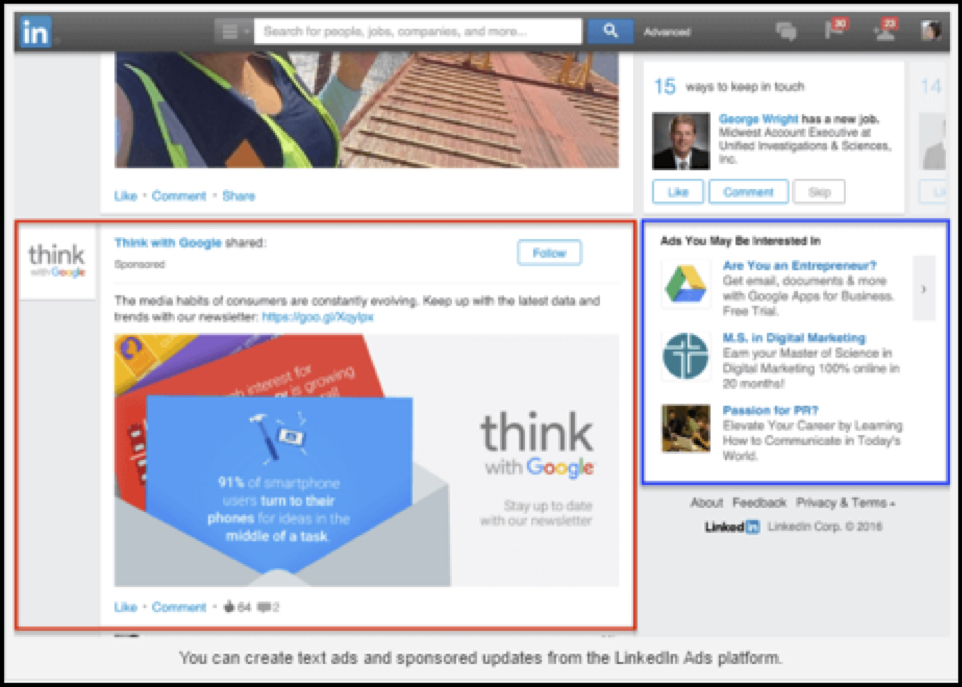
People can view sponsored updates by visiting the advertiser’s website, clicking on the image in the update, and in advertiser’s LinkedIn brand page. For text ads, users can only visit the advertiser’s website and click on the image in the text.
Create a Sponsored Update:
For creating a sponsored update, first, go to the LinkedIn Campaign Manager. If you have an account linked to your LinkedIn company page, then click on your account from the list.

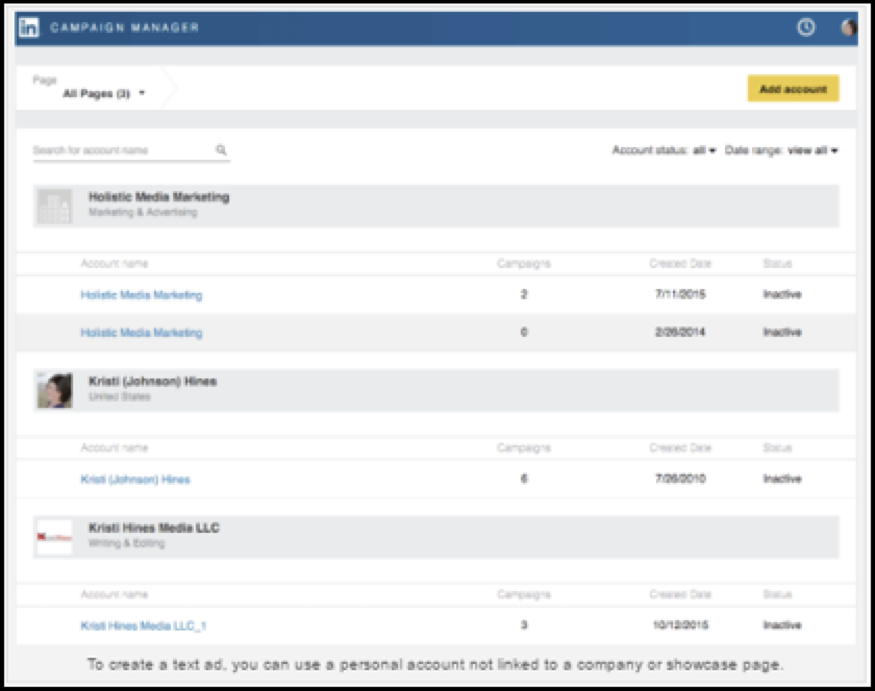
If you don’t have an account, you can create one by clicking on the “Add account” button.
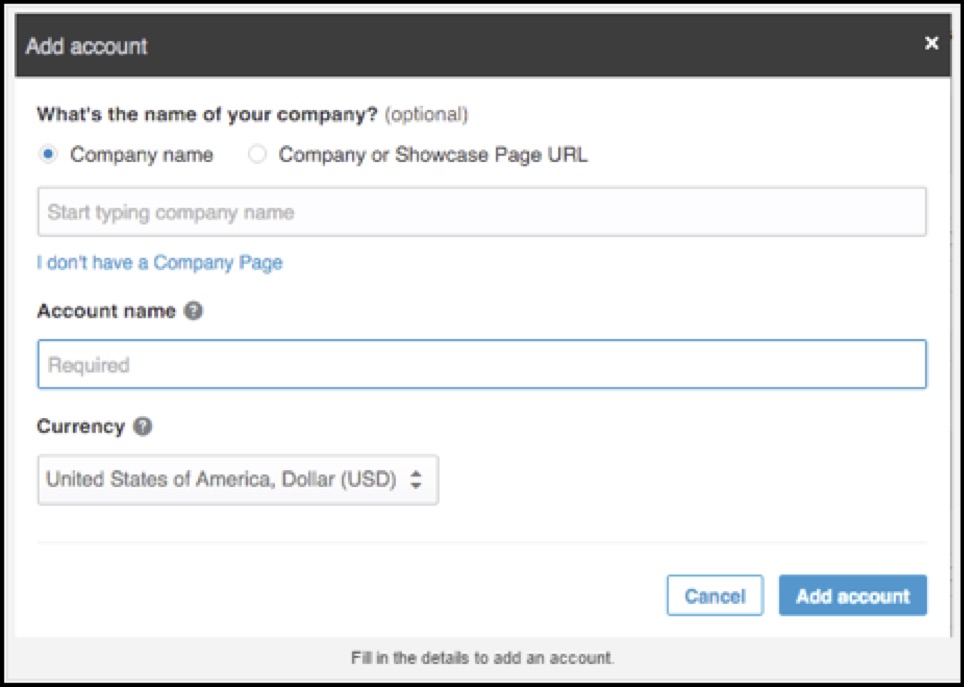
After choosing your account, click on Create Campaign Button.

Then select Sponsored Updates.
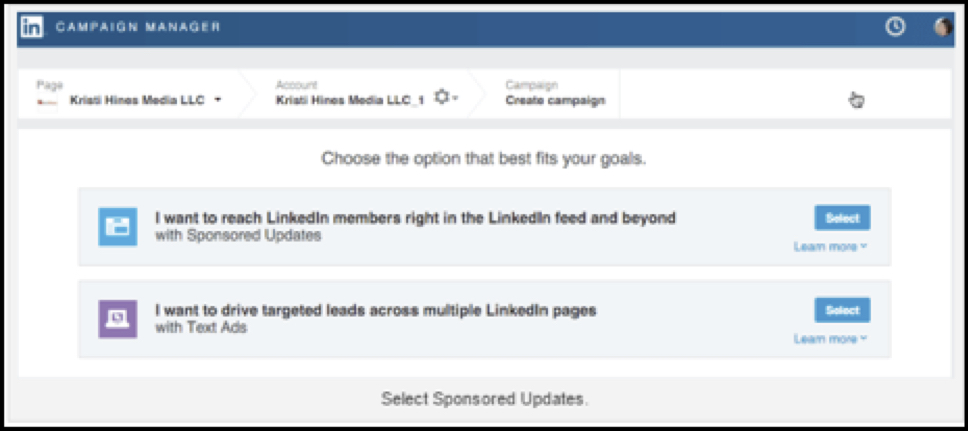
Enter your campaign name. Then, choose an update to sponsor from your company page or showcase page, or click on Create New Sponsored Update.
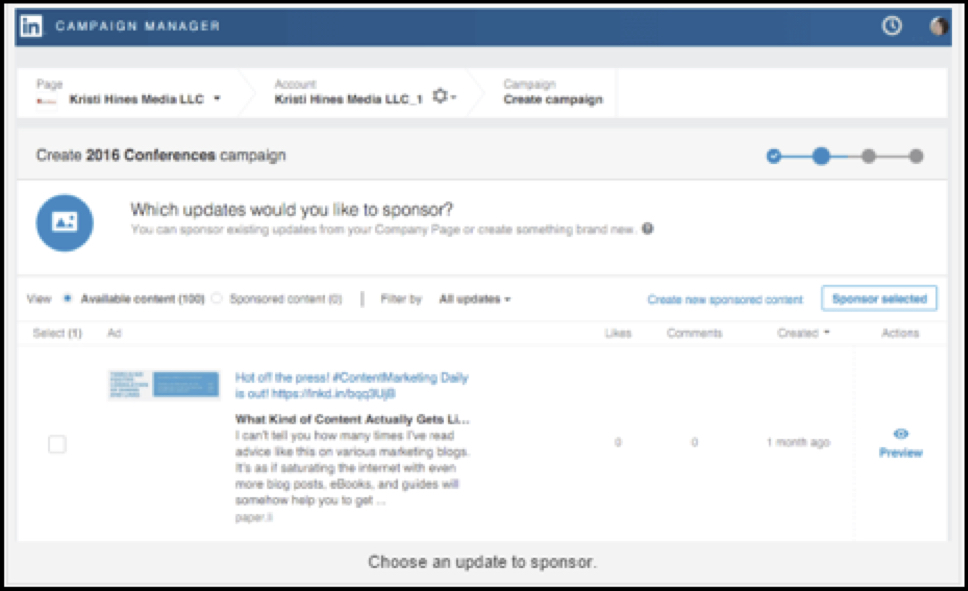
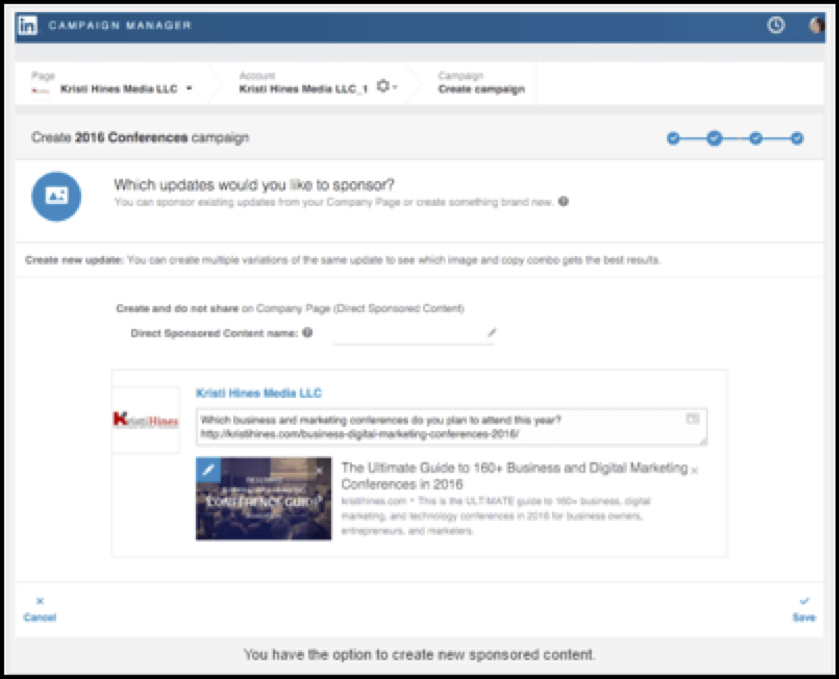
You have the option to customize an update, if you choose to create a new sponsored update.
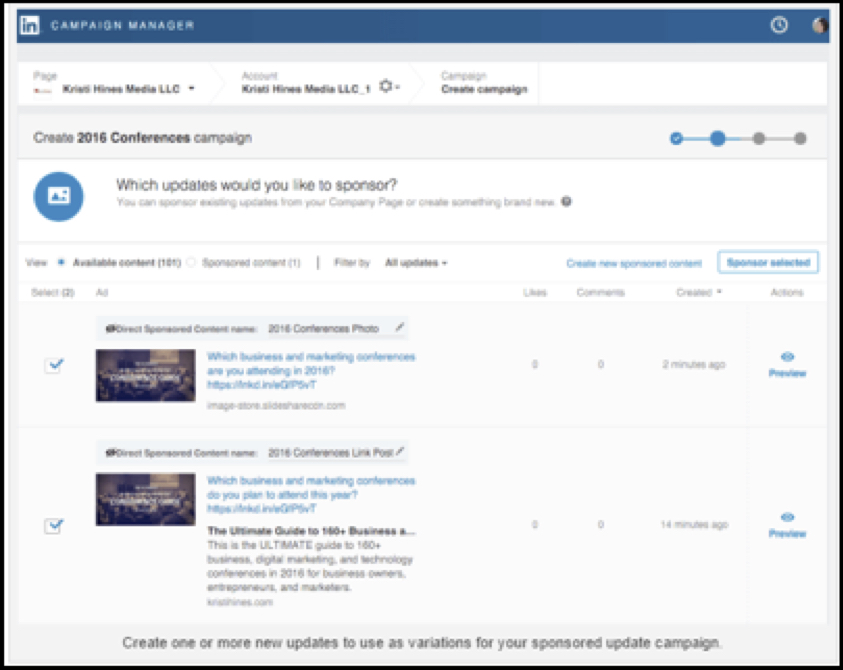
Also, you can easily create more than one new update for your campaign.
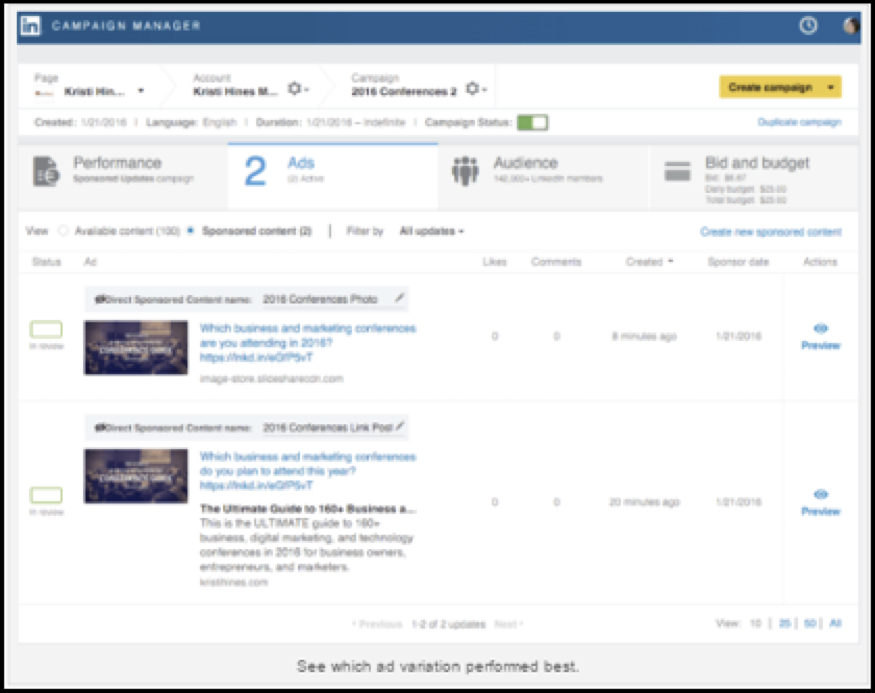
The updates you create will appear on Direct Sponsored Content tab on your company page or showcase page.
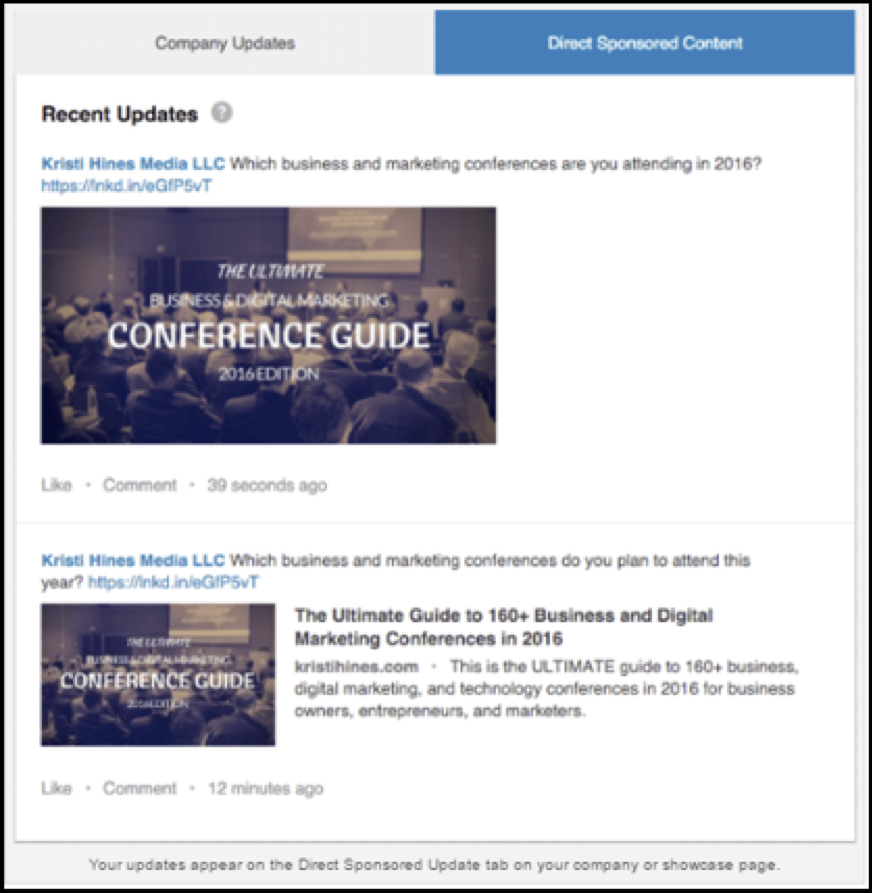
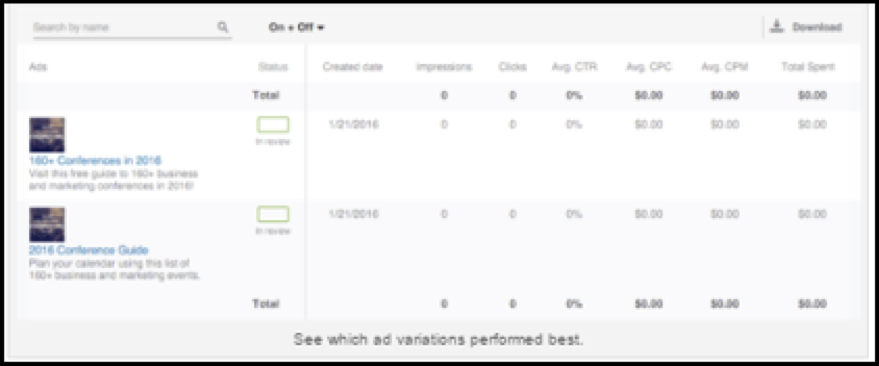
After launching your campaign, you can view these updates to see which performs better for your campaign.
Create a Text Ad:
First, go to the LinkedIn Campaign Manager and select an account linked to your company page or showcase page.
Then, click on the Create Campaign button.

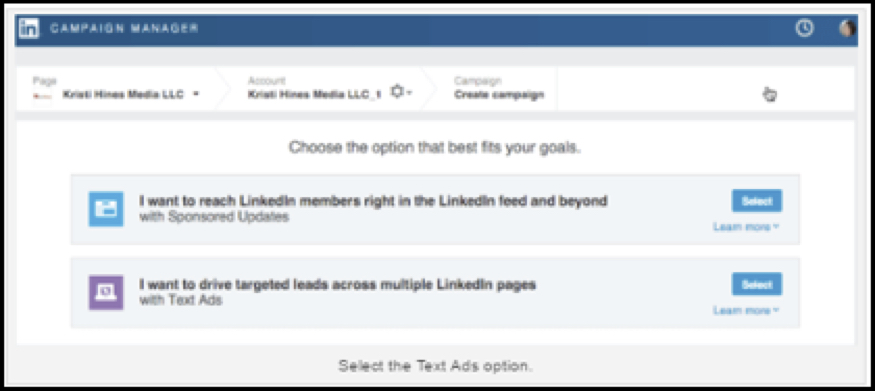
Then, select Text Ads.
Enter your campaign name and configure your text ads.

You have the option to direct your visitors to your LinkedIn page or website after they click your ad. You can add an image, 25-character headline and a 75-character description for your ad.
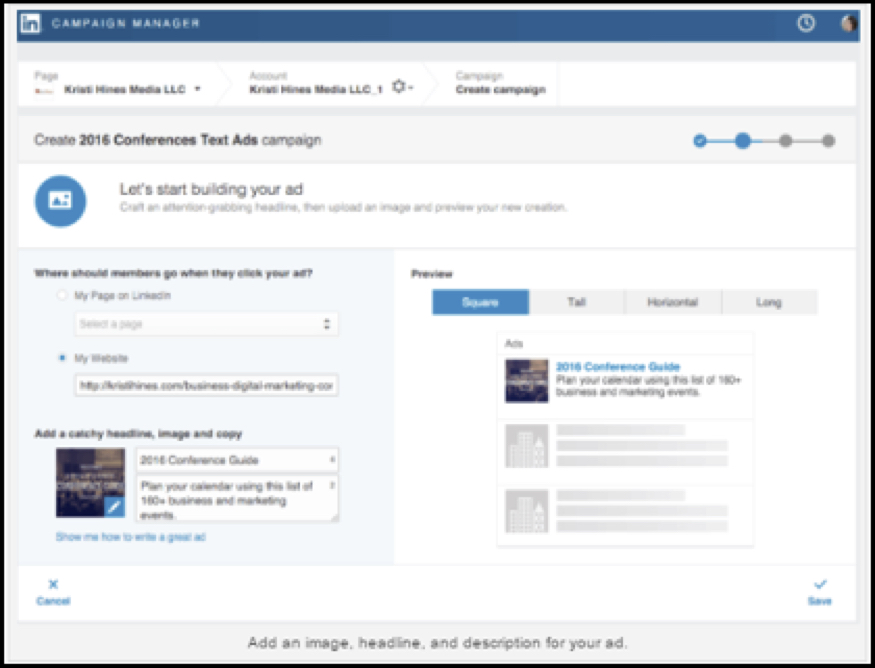
You can create up to 14 additional versions to use for testing.

After launching your campaign, you can view these ads to see which performs better for your campaign.
Target Relevant Audiences:
There is the same option for targeting audiences for both ads format.

Start your targeting with locations, and professional characteristics like company name, company size, job title, school, skills, gender, age, etc.
Set Your Ad Budget:
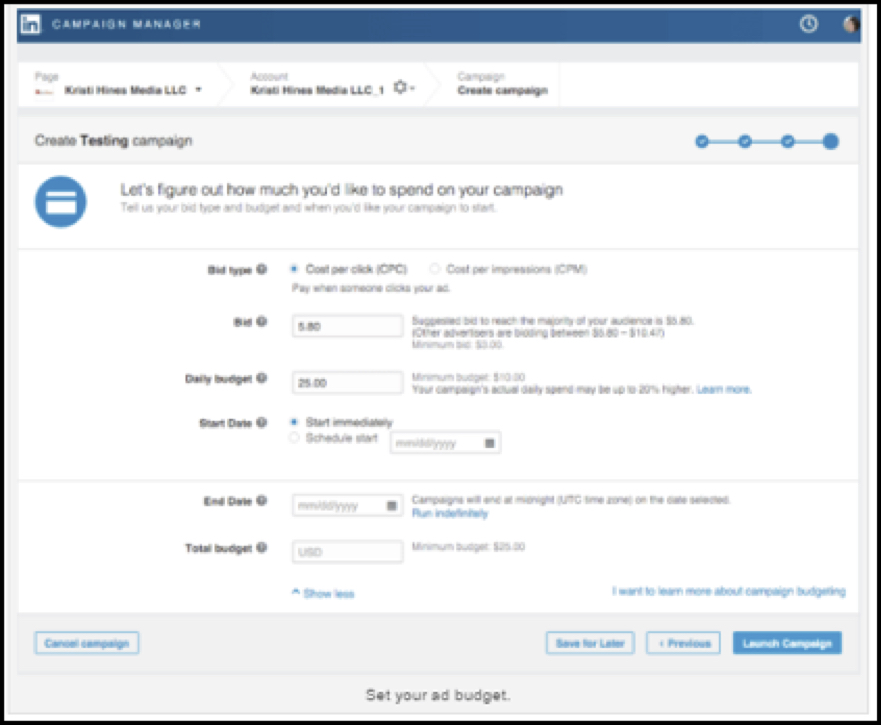
After configuring your target audience, it’s time to set your ad budget. You can choose cost per click or cost per impression to pay for results.
Try LinkedIn ads platform if you’re really looking forward to reaching the most relevant professional audience for your business.